Discord Webhooks
FingerBot has the ability to notify successes, failures and important info regarding tasks to a personal Discord server. This relies on Discord webhooks to notify you moment you successfully get a checkout. You set it up once and forget about it!
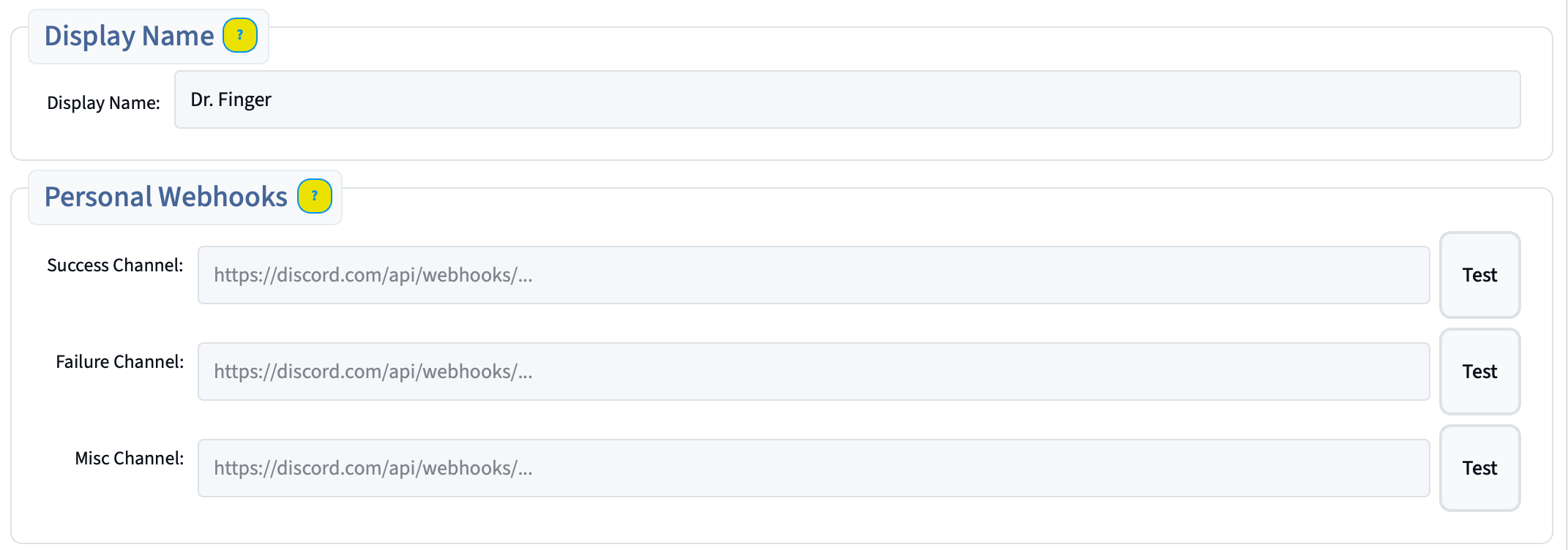
Don't have a webhook URL yet? Open Discord, start with creating a new server → Edit Channel → Integrations → Webhooks → New Webhook → Copy Webhook URL.
How to Set It Up
- Open Settings in FingerBot
- Click the Discord tab
- Paste your Discord webhook URL into the Success field
- Click Test — you should see a green checkmark and a test message appear in your Discord server
- Repeat this for both Failure and Misc channels
- Done. The bot will ping you automatically after every successful checkout, issue, notification, etc.
Display Name
There's also a Display Name field at the top of the Discord tab. Whatever you type here shows up at the bottom of every notification (e.g. "FingerBot v2.3.1.1 • Dr. Finger • 3/16/2026, 2:41 PM"). It's optional — leave it blank if you don't care.
Frequently Asked Questions
Do I need to set this up for the FingerAIO server notifications?
No. The shared #fingerbot-checkouts channel in FingerAIO is handled separately — your webhook here is just for your own private server.
Will both fire at the same time?
Yes. The FingerAIO channel notification and your personal webhook are completely independent. Setting up a personal webhook doesn't affect the shared one.
The Test button shows ✗ — what's wrong?
Double-check that you copied the full webhook URL. It should start with https://discord.com/api/webhooks/.... Make sure the webhook still exists in your Discord server settings.