Amazon
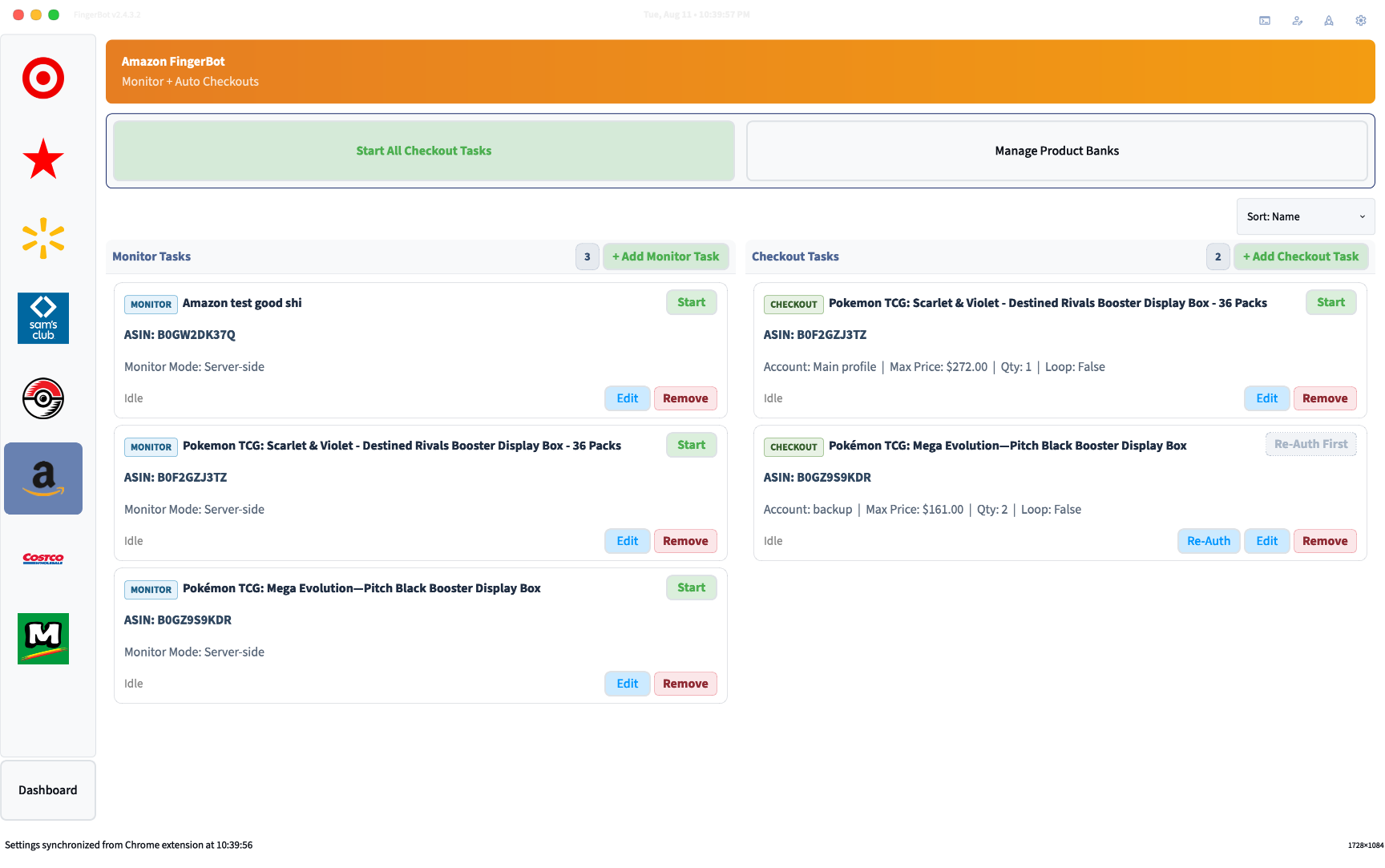
Welcome to the Amazon module guide (shoutout watupbra for doing a ton of work on this). FingerBot's Amazon module is fully compatible with consumer and business account purchasing.
Use this page to get everything set up including step-by-step instructions for setting up monitor and checkout tasks.
| Task Mode | Purpose | Account Required? | Proxies Required? |
|---|---|---|---|
| Monitoring | Monitors items and directly updates checkout tasks | No | Yes |
| Checkout | Receives monitor data and handles checkout process | Yes | Optional (but highly recommended) |
Getting Started
This module requires that Amazon accounts have a saved default shipping address, billing address and payment method saved in their account. FingerBot will use all saved default options during checkout.
It’s REQUIRED to have 1-click checkouts enabled.
Task Setup
Monitor Tasks
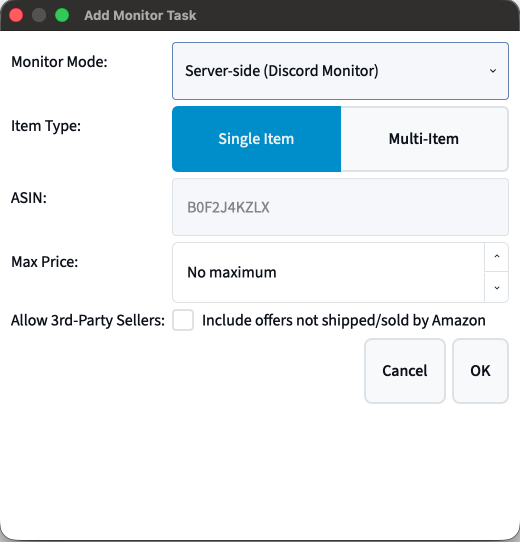
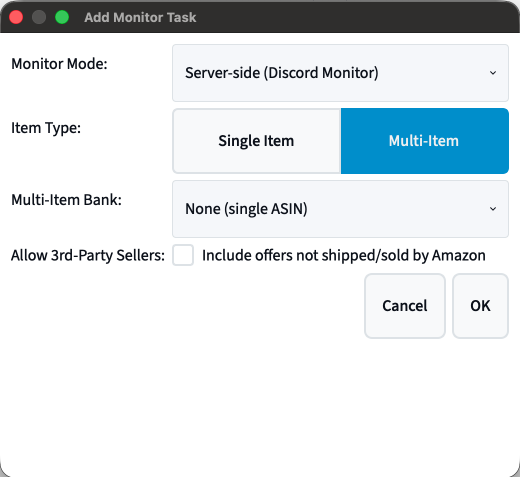
FingerBot has two ways of monitoring for product availability: Server-side and Client-side. Server-side: watches all Amazon-based channels in the FingerAIO Discord channel. Likely faster in-stock notifications but only monitors a small subset of items. Client-side has the ability to monitor any item but slower in-stock notifications and requires proxies.
Server-side Monitor (Discord)
- Single Item or Multi-Item: choose if you'd like to monitor a single ASIN or multiple at one time
- ASIN: Amazon's internal identifier for products
- Max Price: optional price cap. Leave at No maximum if you want to purchase regardless of the price (item subtotal)
- Allow 3rd-Party Sellers: Leave unchecked if you only want items Shipped and Sold by Amazon
Client-side Monitor (In-App)
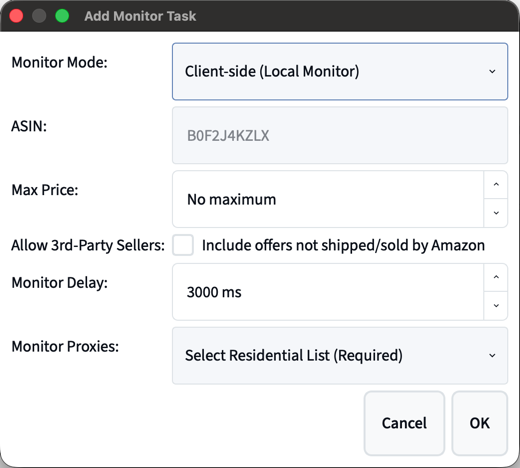
Client-side: local (in-bot) monitor that constantly polls product endpoints to determine in-stock status.
- ASIN: required.
- Max Price: optional price cap. Leave at No maximum for no cap. (item subtotal)
- Allow 3rd-Party Sellers: Leave unchecked if you only want items Shipped and Sold by Amazon
- Monitor Delay: Interval delay between each in-stock check.
- Monitor Proxies: choose a residential proxy list.
Checkout Tasks
This is the task that actually attempts the checkout and is linked to an account. It’s extremely important to understand that current functionality is limited to 1 checkout task per account. FingerBot supports multi-item monitoring because of this limitation.
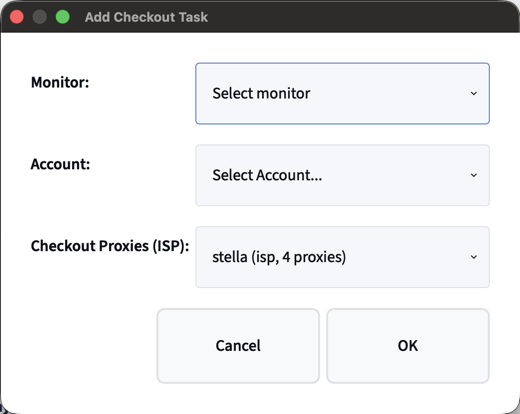
Checkout Task Fields
- Monitor: select the monitor task/list
- Quantity: units per order (FingerBot will automatically lower the quantity to the max allowed if the quantity is higher than the limit)
- Loop Until Stopped: keeps task running even after successful checkout. Be careful, using this will attempt to purchase the item nonstop until manually stopped. (When using a monitor list, any successful checkout will stop the entire task from running if left unchecked)
- Account: select the Amazon account to use (in Profiles Setup)
- Checkout Proxies: choose Local IP or an ISP proxy list.
FingerBot requires each and every checkout task to have a connected monitor task in order to properly work.
Task Statuses
| Status | Meaning |
|---|---|
Idle | The task is stopped. |
Armed | The task is waiting for a Discord stock alert. |
Monitoring | The monitor task is watching for stock. |
Checkout | Checkout task is trying to place the order. |
Success | An order was placed. |
Failed | The task hit a problem and stopped. |
Needs Login | The task needs a valid Amazon account or login session. |