PKC — Requests Mode
Use this guide for PKC Requests mode. In this mode, FingerBot handles everything in the background — no browser windows, no manual steps. It joins the queue, adds to cart, and submits your order automatically. When elevated security is detected on Pokemon Center, the hCaptcha harvester will automatically open and start banking tokens for when the queue is activated. Tasks should automatically start when the queue is detected and enter queue.
Pre-requisites
FingerBot's Pokemon Center module requires ISP / Residential proxies and guest profiles setup in order to properly purchase. For more information on either, visit Proxies or Profiles Setup.
Task Creation
- Go to the Pokemon Center page in FingerBot and click the Add Task button.
What Each Field Means
- Product Name — a label just for you.
- Example:
Chaos Rising ETB
- Example:
- Item(s) (optional) — one SKU per line, max 3 items per task. You can find the SKU number from Discord pings in the
#pokemon-centerchannel. You can optionally set a quantity per item by adding a number after the SKU. You can leave this blank during task creation if item SKUs are not known.
`text FORMAT: SKU SKU QTY
EXAMPLE: 10-10399-111 2 290-85466 70-11051-101 `
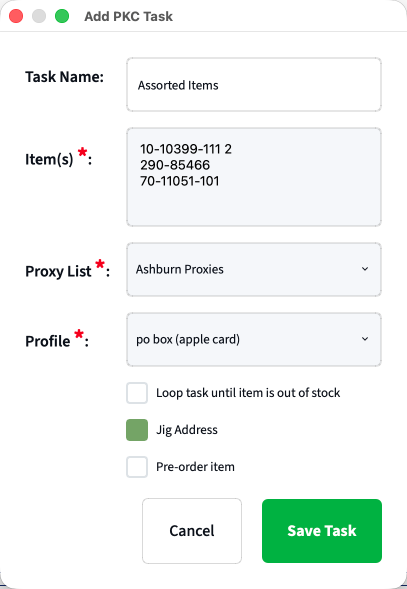
Example: the first item has quantity 2, and the other two default to 1. If a SKU's requested quantity exceeds the site's purchase limit, it is automatically reduced to the maximum allowed.
- Quantity — set per item by adding a number after the SKU (e.g.
70-11051-101 2). Items without a number default to 1, and the per-line quantity takes priority. There is no separate quantity field. - Proxy List (required) — pick your ISP proxy list.
- Profile (required) — pick your Guest Profile.
- Loop Task — Task will keep trying to purchase until the item is out of stock.
- Jig Address — If you would like this task to jig your address. Explained in more detail below.
- Pre-order Item — (Removed toggle) Pre-order handling is now dynamic: each task inspects the product page HTML at runtime (
pkc_is_preorder_from_page) and flags the cart as pre-order automatically. There is no manual checkbox. (AT THIS TIME DO NOT MIX IN-STOCK AND PRE-ORDER ITEMS TOGETHER IN A SINGLE TASK — the flag is cart-level, and a mixed task sends one sharedcartType/lastCartItemvalue. A mixed cart is now detected at runtime and logged asPKC stage: atc_mixed_preorder (…)in the task log, so if you see that line, split the task and re-run it.)
Example Tasks
Single SKU Task
| Field | Value |
|---|---|
| Task Name | Chaos Rising ETB |
| Item(s) | 10-10399-111 |
| Proxy List | Ashburn ISP Proxies |
| Profile | Main Card |
| Loop Task | ✅ Checked |
| Jig Address | ☐ Unchecked |
| Pre-order item | ✅ Checked |
Multi-SKU Task
| Field | Value |
|---|---|
| Task Name | Chaos Rising ETB + Booster Box |
| Item(s) | 10-10399-111 2 10-10407-119 1 |
| Proxy List | Ashburn Resi Proxies |
| Profile | Secondary Card |
| Loop Task | ✅ Checked |
| Jig Address | ☐ Unchecked |
| Pre-order item | ✅ Checked |
Running Multiple Tasks & Maximizing Orders
If you want to run more than one task, each task needs its own Guest Profile. A profile ties together your name, addresses and a payment — this is what lets each task place a separate, independent order. You are welcome to create multiple tasks with a single profile, but it’s necessary that you check the Jig Address checkbox.
The key constraint: Pokemon Center enforces a per-customer order limit. Each order (ideally) needs a unique shipping address. If two tasks use the exact same address, the second order is likely to get rejected. You can try to use FingerBot internal jigging mechanism but nothing is guaranteed when using this method. It’s always preferred to ship to different addresses.
One profile = one shipping address + one card. Each task you create should point to a different profile. If you have more tasks than unique addresses, you can use the Jig Address option on the extras — but read the caveats below.
Example: 4 Tasks with 2 Real Addresses and 4 Cards
| Task | Profile | Address | Card | Jig Address? |
|---|---|---|---|---|
| Task 1 | Profile A | Home | Card 1 | No |
| Task 2 | Profile B | PO Box | Card 2 | No |
| Task 3 | Profile A (copy) | Home | Card 3 | Yes |
| Task 4 | Profile B (copy) | PO Box | Card 4 | Yes |
Create 4 separate profile entries in FingerBot — even though Tasks 3 and 4 share the same real addresses as Tasks 1 and 2. Each profile gets a different card assigned to it.
How Jig Address Works
When Jig Address is enabled on a task, the bot applies minor variations to the shipping address (e.g. abbreviating "Street" to "St", small apartment number tweaks) so each order looks like a different customer.
Important details:
- Billing is never jigged. The billing address always matches the card exactly, to prevent AVS payment declines.
- Smart first-order detection. If a profile has never placed a successful order, jigging is automatically skipped on its very first run — the clean address goes through first. Jigging only kicks in on subsequent orders for that profile name. This means Tasks 3 and 4 in the example above will also fire clean on their first attempt, not just Tasks 1 and 2.
- Jigging is a fallback, not a strategy. Real unique addresses always have higher success rates.
Step 5 — Solve Captchas Once the Queue is Live
For full details on manual harvesting and automatic solver setup, see Captcha Solvers.
Pokemon Center only shows the hCaptcha puzzle when the queue is actually up. You can't harvest tokens ahead of time — the challenge won't appear until the queue page is live. Once the queue is live:
- Click Open Harvester — a small Chrome window appears with a captcha puzzle
- Solve the puzzle. Each solve stores one answer for the bot.
- The window resets automatically — keep solving in order to get your tasks into queue.
- Leave at least one harvester window open while the bot is running so you can top up as needed
Tokens expire in ~90 seconds. Don't solve a captchas too far in advance — they'll expire before the bot uses them.
Step 6 — Run Your Tasks
- Start All Tasks to start all tasks
- Click ▶ on desired tasks to start individually
To stop everything: click Stop All Tasks.
Misc Information
Updating the SKU(s) while the bot is running If you left the item list blank when creating the task, you can edit the task while it's waiting in queue and type in your SKU(s). The bot picks them up immediately — DO NOT stop/restart tasks. Loop Task With Loop Task checked, the bot automatically re-enters the queue after each attempt. Good for drops that restock or go on for a long time.
Things to Know
- No browser windows will open. This is intentional. Everything runs invisibly in the background. It’s imperative that all tasks are setup prior to the drop or tasks will never get into queue in time.
- This mode is still being improved. It may occasionally get blocked or fail to enter queue. If that happens, it will retry automatically (or restart if Loop Task is on).
- High quality ISP/Residential proxies are required.
- Only US addresses are supported.
No browser windows will open. Watch the status labels and the console to follow what the bot is doing. Status labels:
| Status | What's Happening |
|---|---|
| Idle | Ready but not started; also shown after you stop a task manually |
| Initializing | Bot is setting up |
| In Queue | Waiting for Pokemon Center to let it through |
| Admitted | Through the queue — now going for the item |
| Checking Out | Adding to cart and submitting the order |
| Success | Order placed 🎉 |
| Failed | Something went wrong — check the console |
Something's Wrong — Quick Fixes
| Problem | Fix |
|---|---|
| Captcha error | Ensure that captchas are being solved correctly. Use a stronger model if necessary. |
| Stuck in queue forever | Pokemon Center may have changed something — check the console for errors. Report issues to Dr. Finger. |
| Randomly dropped from queue | Likely proxy related or queue was taken down |
| One or more items skipped (OOS) | The bot skips out-of-stock items and proceeds with whatever it successfully carted. If nothing was carted, it retries up to 3 times. Enable Loop Task for automatic re-queue. |