Target Browser Mode
Quick Start (Recommended Setup)
(For users who want a fast setup and can’t be bothered to read everything)
- Choose the items you want FingerBot to try and attempt checkouts
- Open the settings window, under the Target Tab
- Choose the minimum stock to open (Recommended: 10)
- Enter the CVV number associated with the default card set to your Target account
- Set item priorities (if you want)
General UI Layout
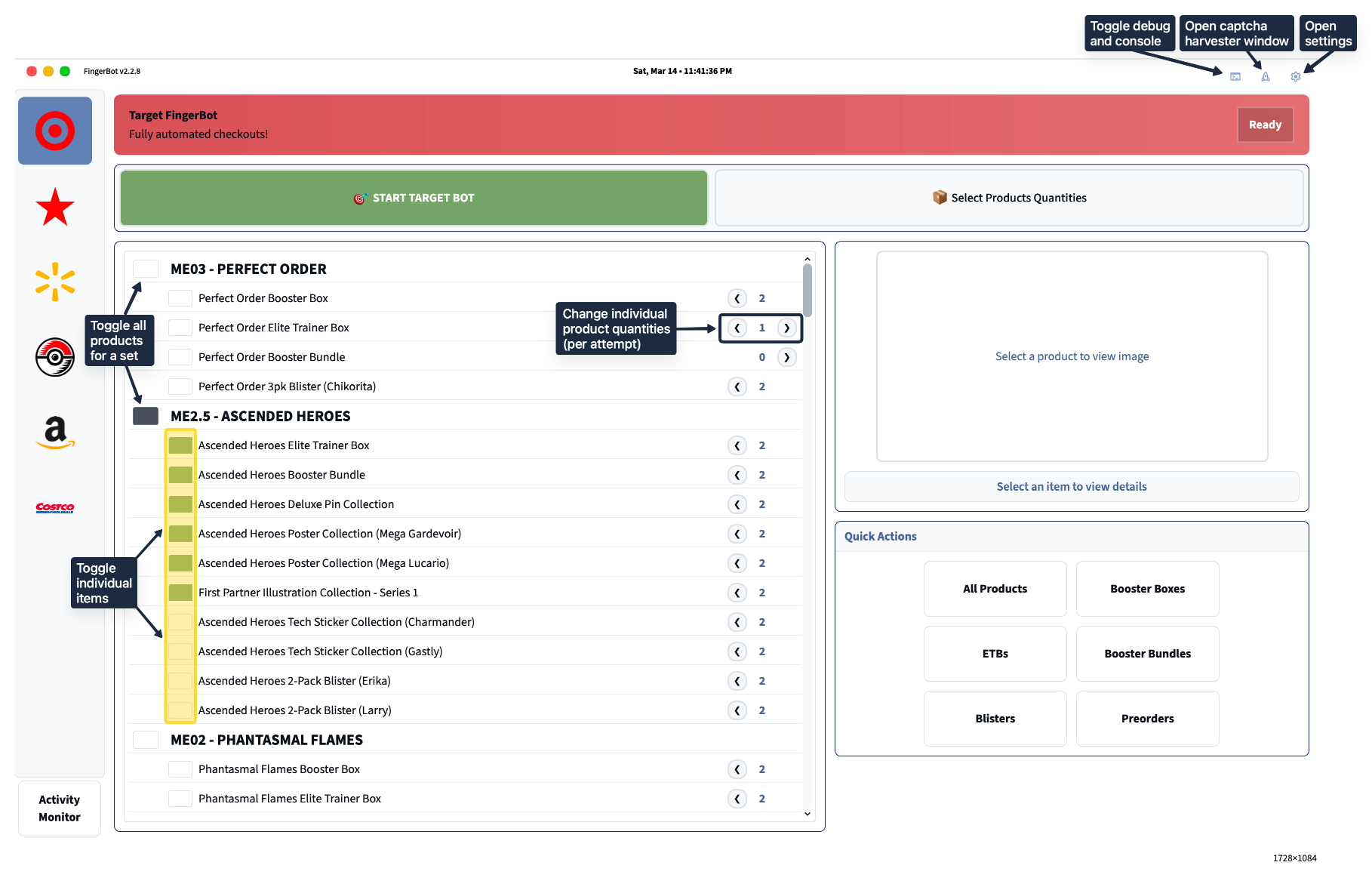
How it works
FingerBot monitors the FingerAIO discord monitor for Target drops, cross-references your desired product list and stock amount, then automatically opens desired items in your Google Chrome browser.
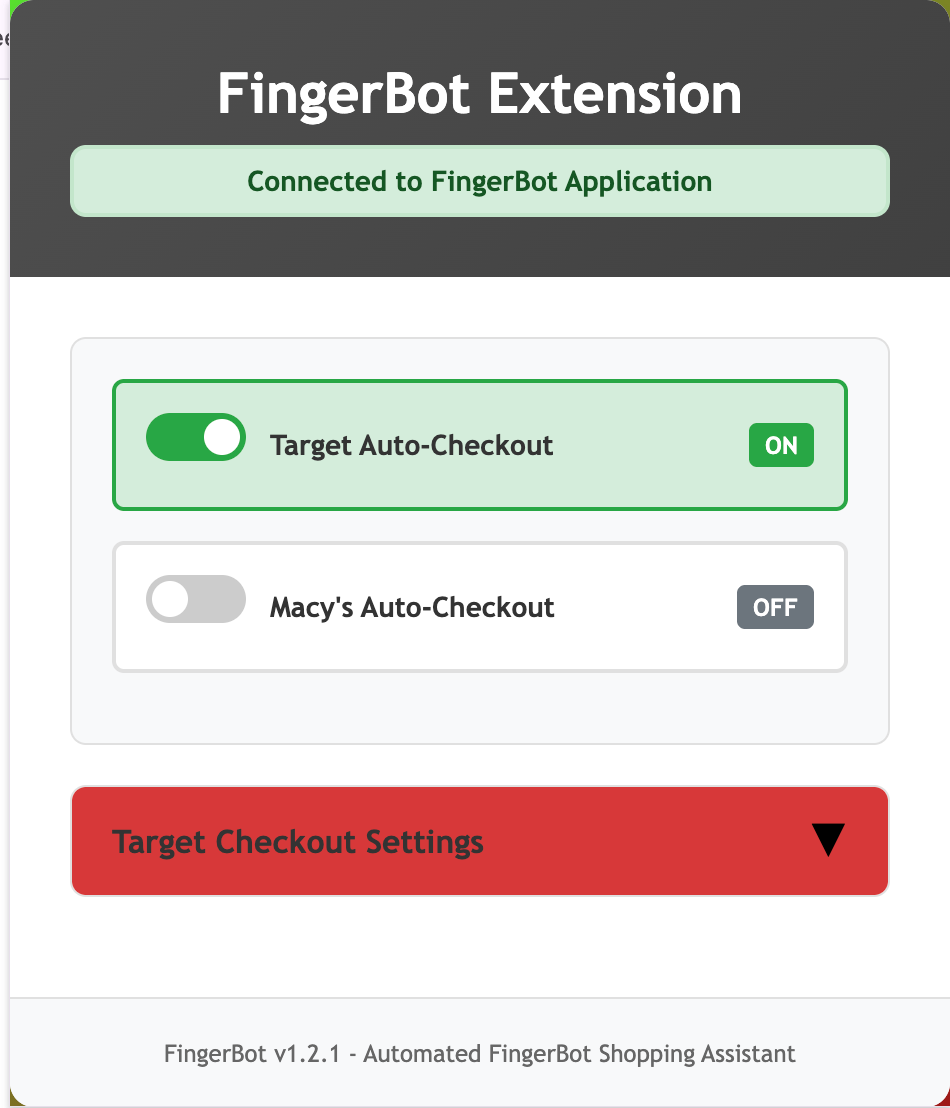
The FingerBot Extension connects to the FingerBot application to fully automate checkout attempts. FingerBot will attempt checkouts as long as you are signed into your Target account with a default saved shipping address, billing address and payment method in your account.
You must click the START TARGET BOT button to enable automatic ping opening.
A few seconds after starting the bot, a new Chrome browser instance should be created. It may take a few seconds but after it loads you should be on this site: https://www.target.com/robots.txt . THIS IS NORMAL! DO NOT MINIMIZE/CLOSE THIS WINDOW. It’s recommended to resize the window to be larger so that FingerBot does not need to scroll to buttons on product/checkout pages.
In a new tab, go to any Target product page (not in your list so it doesn’t attempt to ATC). Look for a button that says “Buy Now” or “Sign in to buy”. This indicates if your session needs to be re-authenticated. (Only certain items have the buttons, try a few different ones if either are present)
Managing Items
You can easily toggle individual items you want to enable/disable from the main list or toggle entire groups of items found in the Additional Product Settings menu.
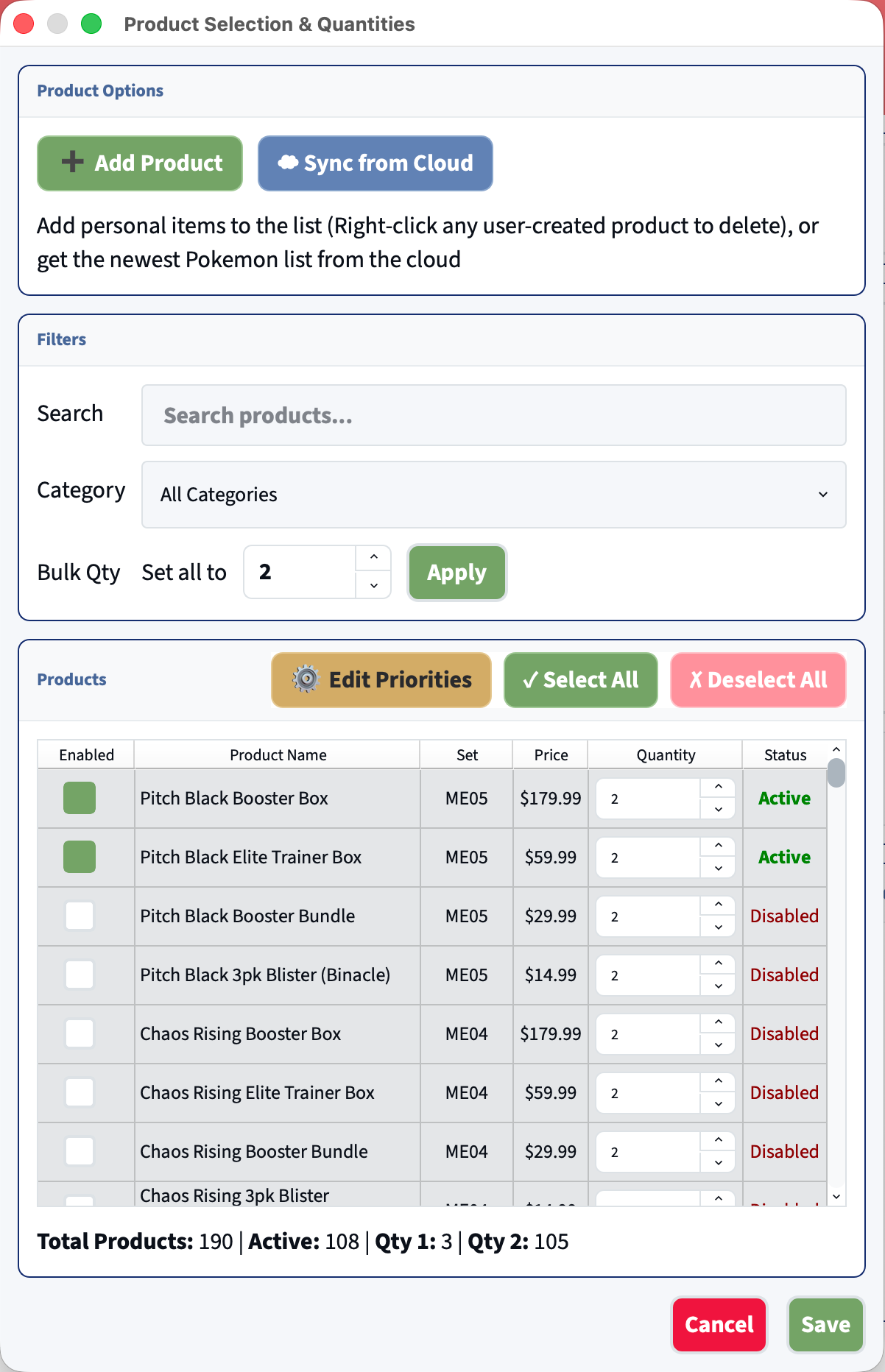
Product Options
Custom Items
You can add items not found in the default item list by clicking the Add Product button. Enter a Target product URL or TCIN into the input. FingerBot will attempt to parse the product name and TCIN automatically when possible. You can delete custom items by right-clicking on an item and pressing delete.
Sync From Cloud
Sync FingerBot’s dedicated product list from the cloud. Useful if a product list update was announced and you don’t want to restart FingerBot. Note: This happens automatically on startup.
Filters and Products
These two sections work in conjunction to filter products based on various criteria. You can update your desired quantity for items as well as enable/disable items all together from here.
Settings
Bot Mode
- Normal Mode: (RECOMMENDED) - standard monitoring and checkout behavior
- Drop Mode: (EXPERIMENTAL) - use only during known drops and when instructed to. Attempts checkouts on all new items one at a time until sold out
- Enable Visual Mouse Debugging (NOT RECOMMENDED) - shows a ghost cursor with click effect on the page to help debug automated mouse movements.
Add to Cart Mode - (Mode 1 Recommended)
- Mode 1 (Button Click) - Automates quantity selection and ATC by emulating mouse clicks
- Mode 2 (Script) - Fires background ATC request, quicker when it works but has unintended side effects like premature product page closures and will eventually stop working all together. Only recommended to use if you are standing by to re-open product pages.
Pre-order items ignore stock completely and will open on every ping regardless of stock amount
Ping Options
- Ping Min Stock: The number associated with the stock number on the Discord ping
1will open every ping set in your list10will open every 10 stock ping11will open every 10+ stock ping
Pre-order items ignore stock completely and will open on every ping regardless of stock amount
- Attempt checkout on new/unknown item pings:
I recommend always having this set to OFF except during drops when product IDs are unknown Having this set to ON will attempt checkout on ANY Target product
Payment Information
- CVV Number: Set this CVV value to the default payment card saved in your Target account
Tips & Tricks
- If Target soft-blocks your browser (aka cannot add to cart), try to ATC on mobile, then manually go to checkout on the browser. (www.target.com/checkout).
- Manually open product pages if FingerBot unexpectedly closes the attempt while product is still in stock.
- FingerBot should automatically disable any items after 2 successful checkouts, however you must have a Target profile saved.